▶Two-minute tour
Prefer to read? Everything in the video is below, step by step.
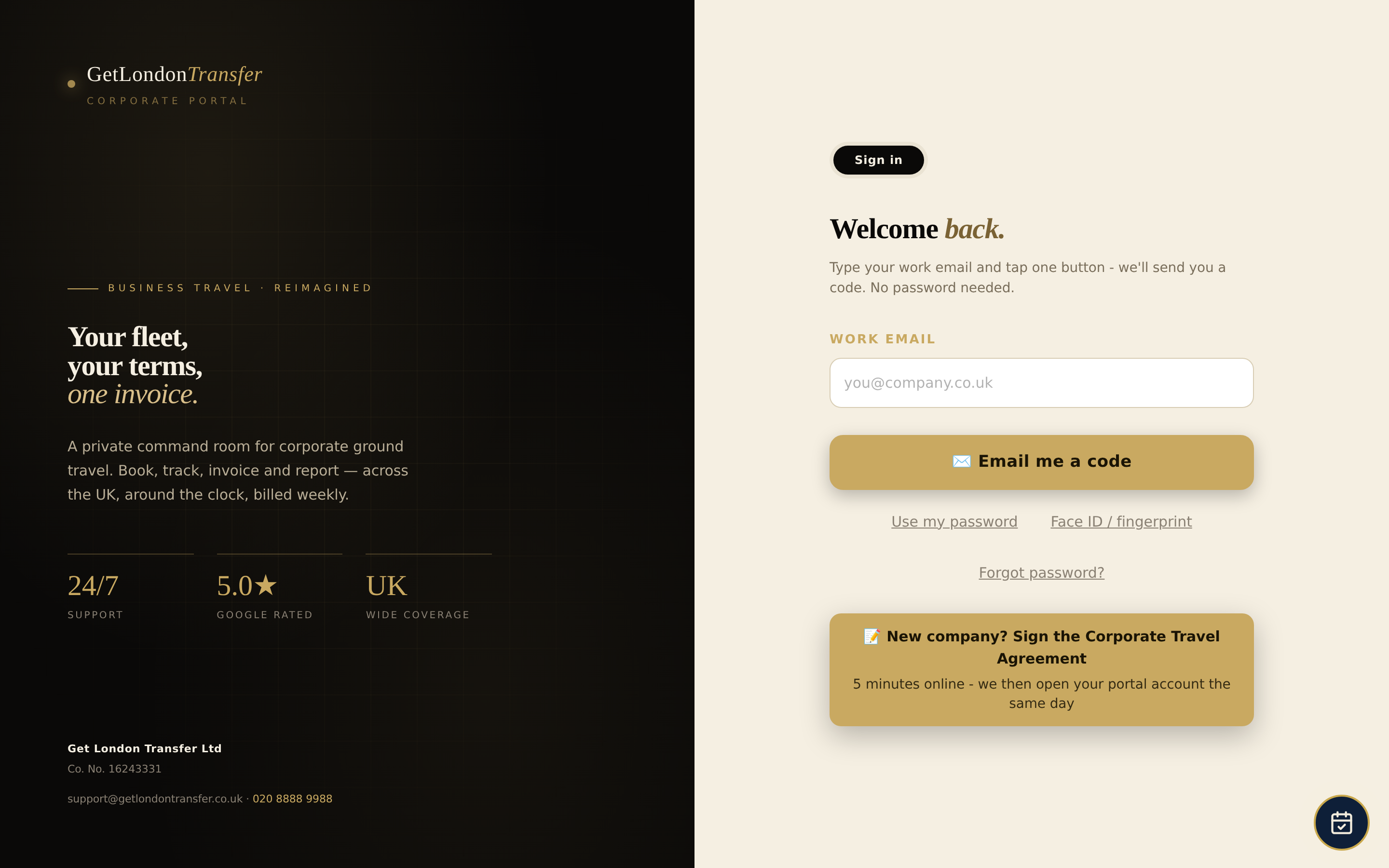
1Sign in - no password needed
- Go to getlondontransfer.co.uk/corporate and enter your work email.
- Tap Email me a code. A one-time code arrives in seconds (by email, or on WhatsApp if your number is on the account). Type it in and you're in.
- Managers can turn on two-step verification (Microsoft/Google Authenticator) under Settings → Security.
- New company? Click Sign the Corporate Travel Agreement on the sign-in page: 5 minutes online, and the account opens the same day.
2Book a car
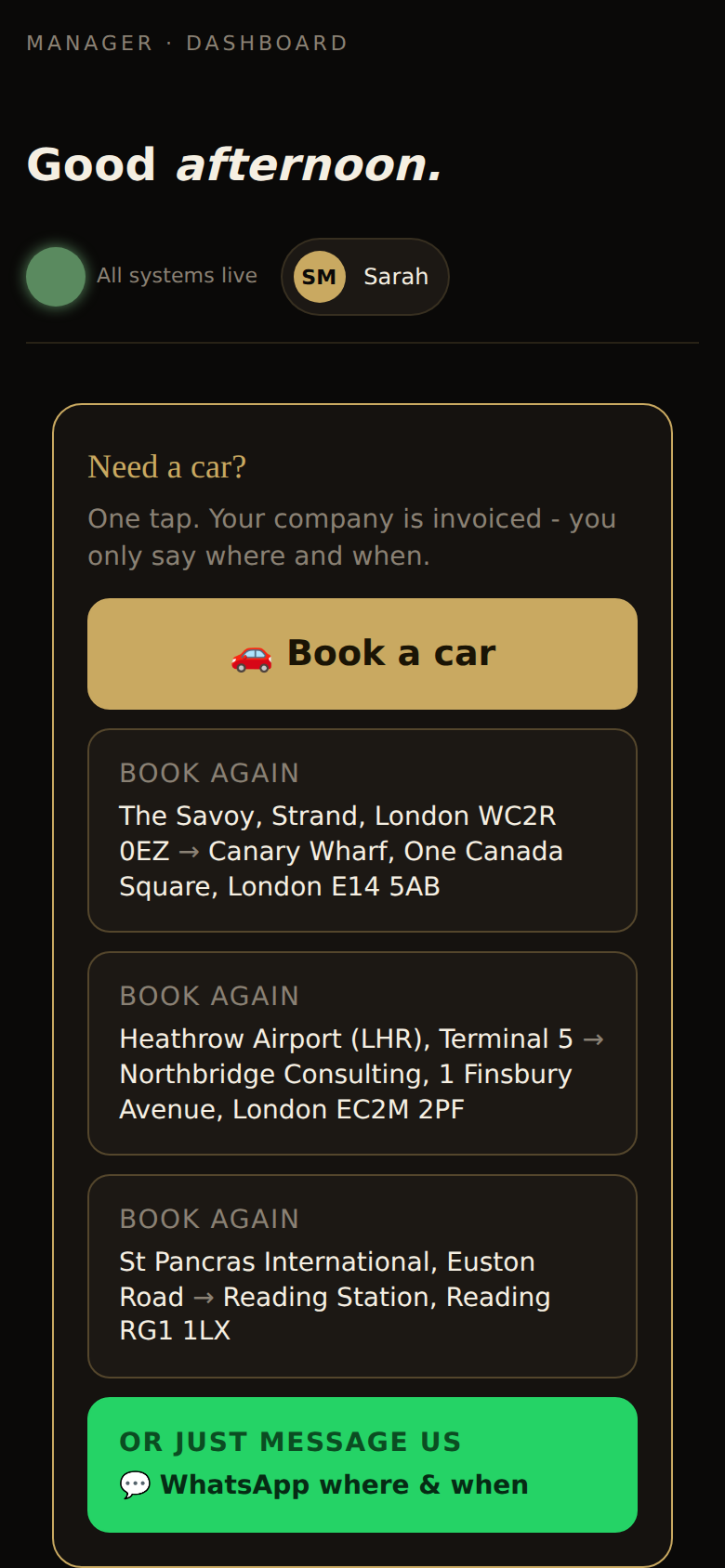
- On the dashboard tap Book a car (or Book again on a recent route).
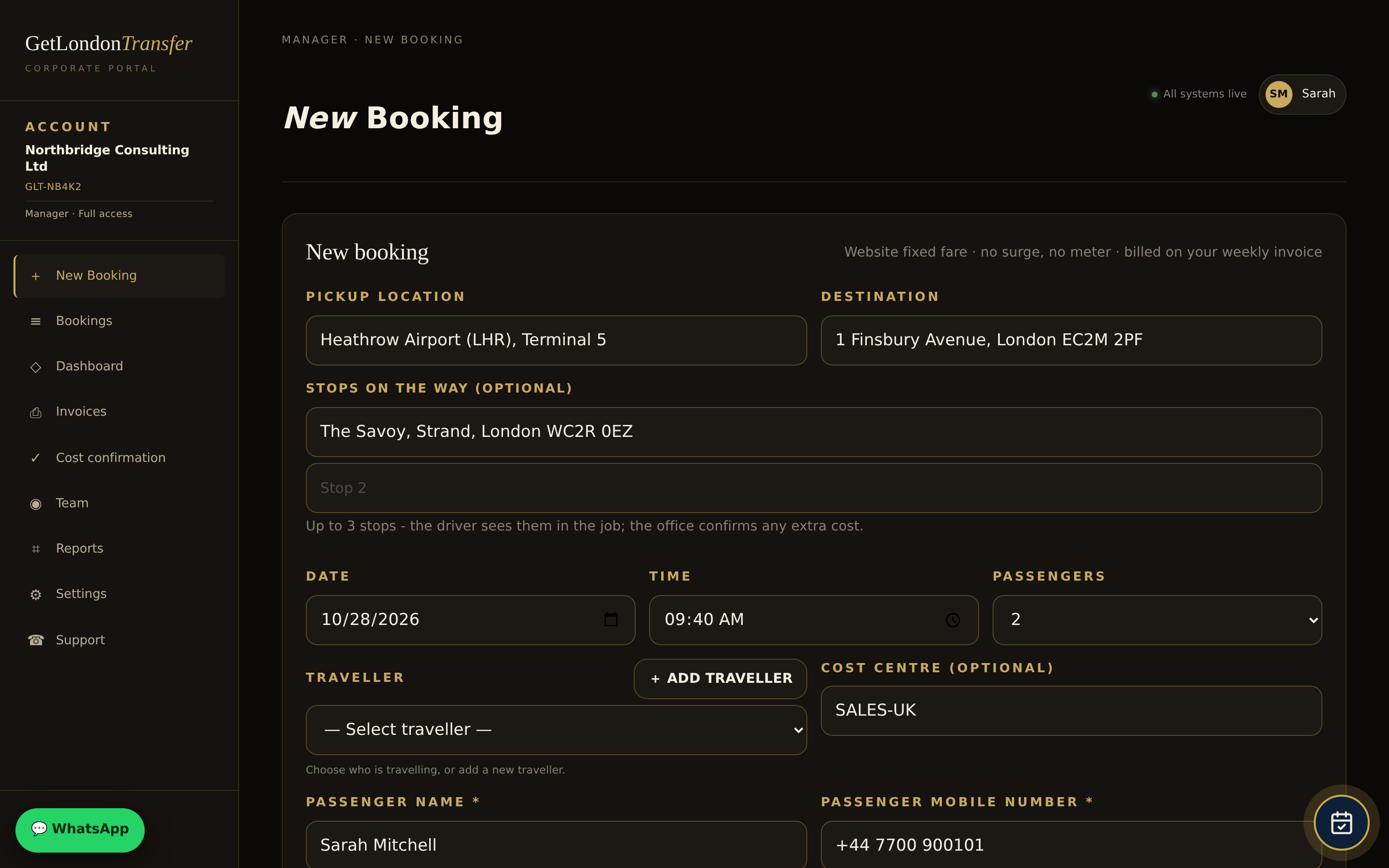
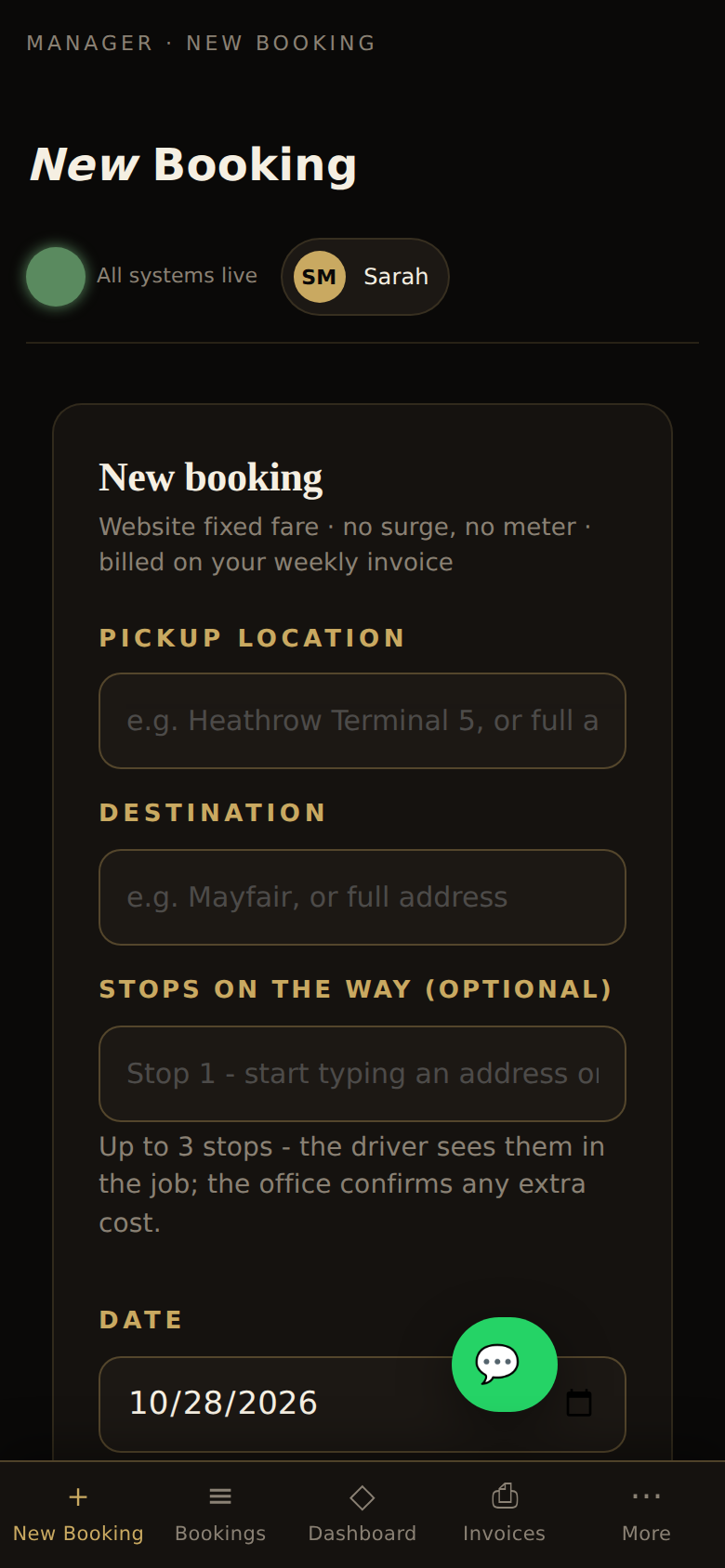
- Type the pickup and destination - addresses, airports, stations and hotels auto-complete. Add up to 3 stops if you need them; the price updates.
- Set the date and time, number of passengers and, for airport pickups, the flight number - we track the flight and move the pickup with the landing time.
- Choose the traveller (from your team list), an optional cost centre / PO, and any notes for the driver ("meet at door 3", "name board please").
- Pick the vehicle class. The fare is fixed and shown before you confirm - it includes Congestion Charge, ULEZ, airport fees and the included waiting time. No surge, no meter.
- Tap Confirm booking. The traveller and booker get an email and a WhatsApp message with the full details and a live tracking link.
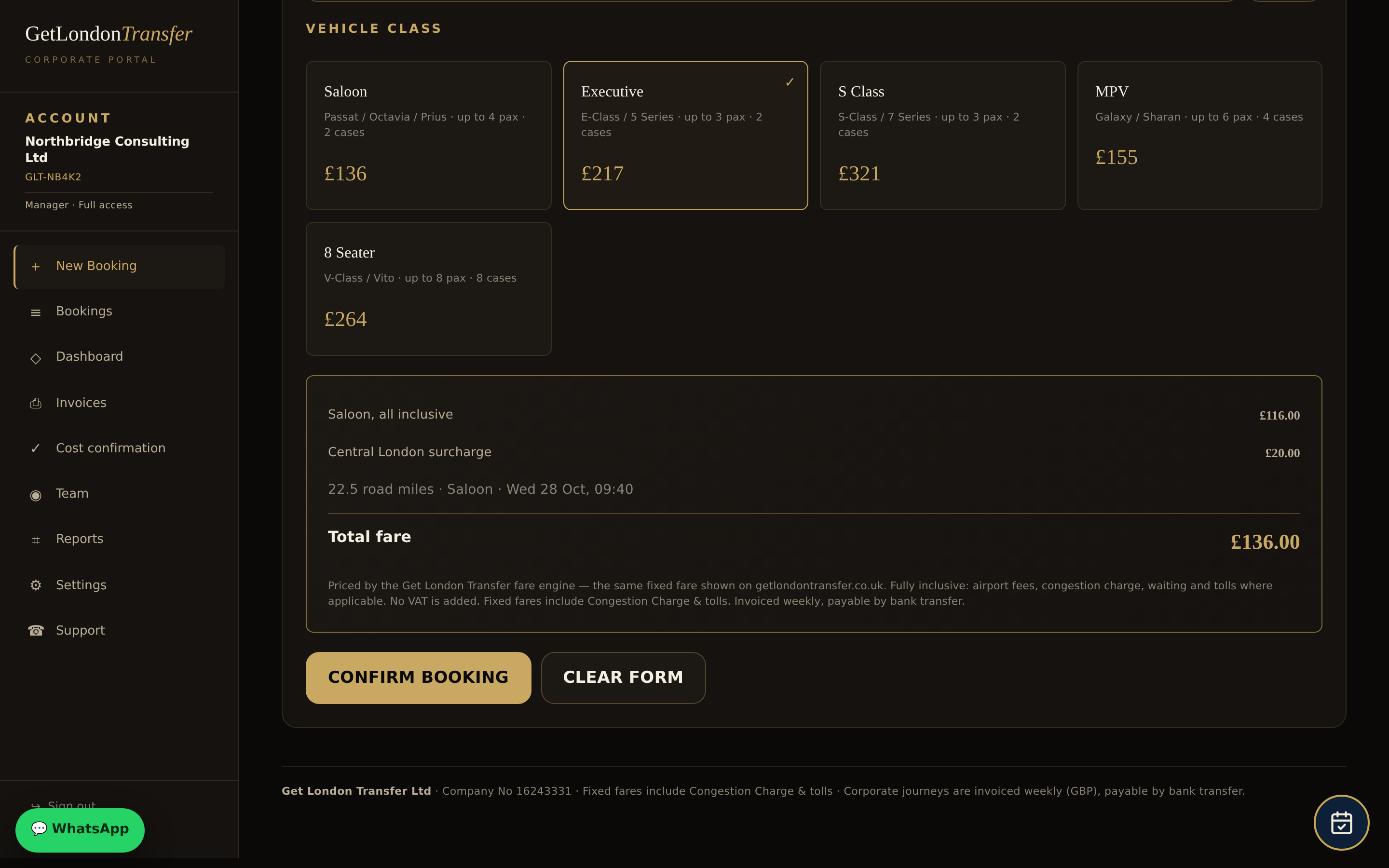
| Class | Typical cars | Passengers / cases |
|---|---|---|
| Saloon | VW Passat, Skoda Octavia, Toyota Prius | 4 / 2 |
| Executive | Mercedes E-Class, BMW 5 Series | 3 / 2 |
| S Class | Mercedes S-Class, BMW 7 Series | 3 / 2 |
| MPV | Ford Galaxy, VW Sharan | 6 / 4 |
| 8-seater | Mercedes V-Class / Vito | 8 / 8 |
3The WhatsApp assistant
Every booking opens a WhatsApp conversation with the people on it. You can also start one yourself: just message +44 7427 249103 in plain English. The assistant answers in seconds, 24/7, and knows your account, your bookings and our prices.
"Car from Heathrow T5 to 1 Finsbury Avenue tomorrow 09:40, flight BA0178" · "Move my 2pm pickup to 3pm" · "Add a stop at The Savoy" · "Who is my driver?" · "Send me the tracking link" · "Cancel GLC-261028-7A2F" · "How much is an Executive to Gatwick?" · "I'm at door 3, tell the driver"


Anyone on the booking (traveller, booker, account manager) can reply. A change is applied only after someone says yes - then the driver, dispatch and everyone on the booking are updated at the same moment. Anything the assistant can't do is passed to a person in the office straight away.
4Changes and cancellations
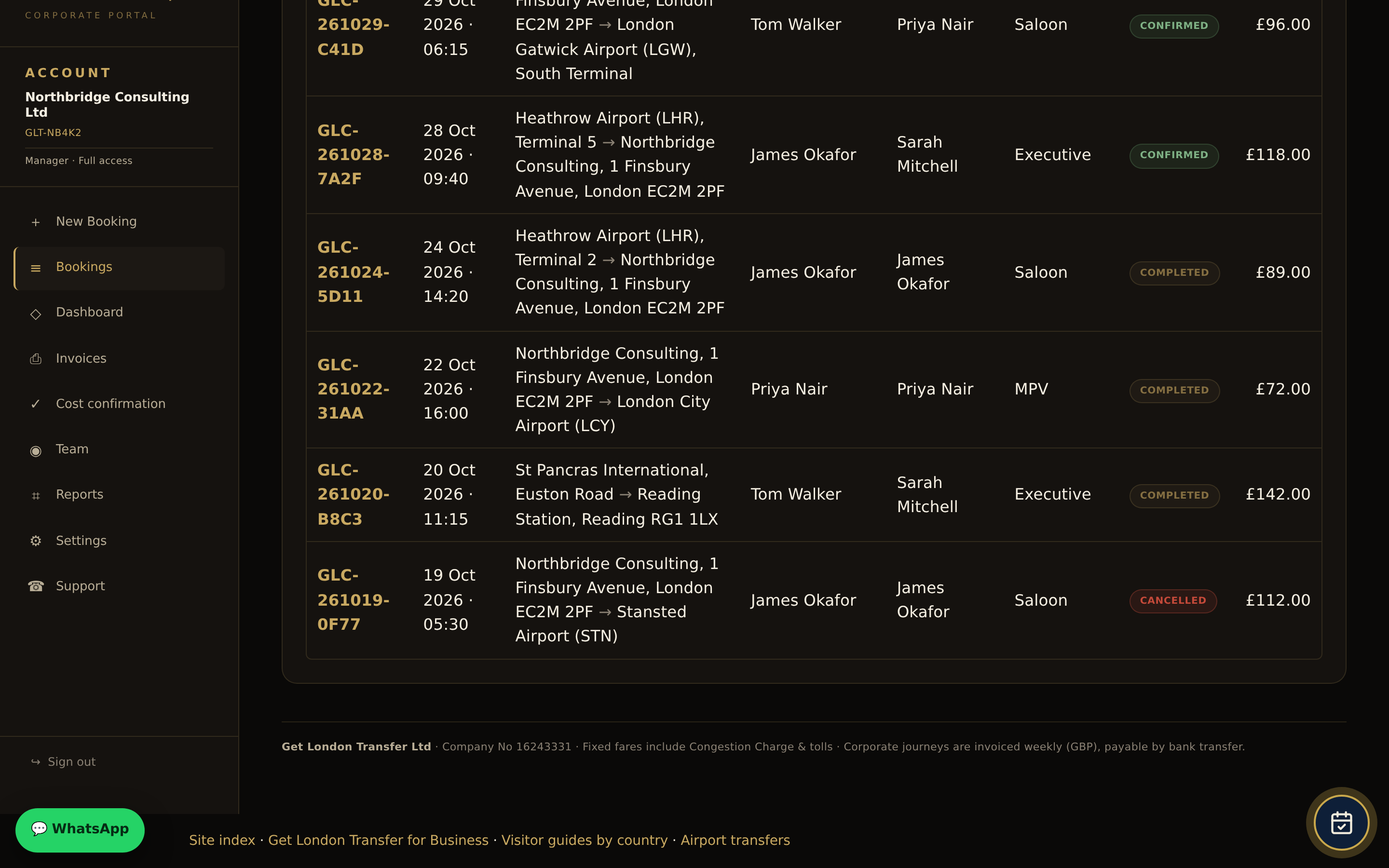
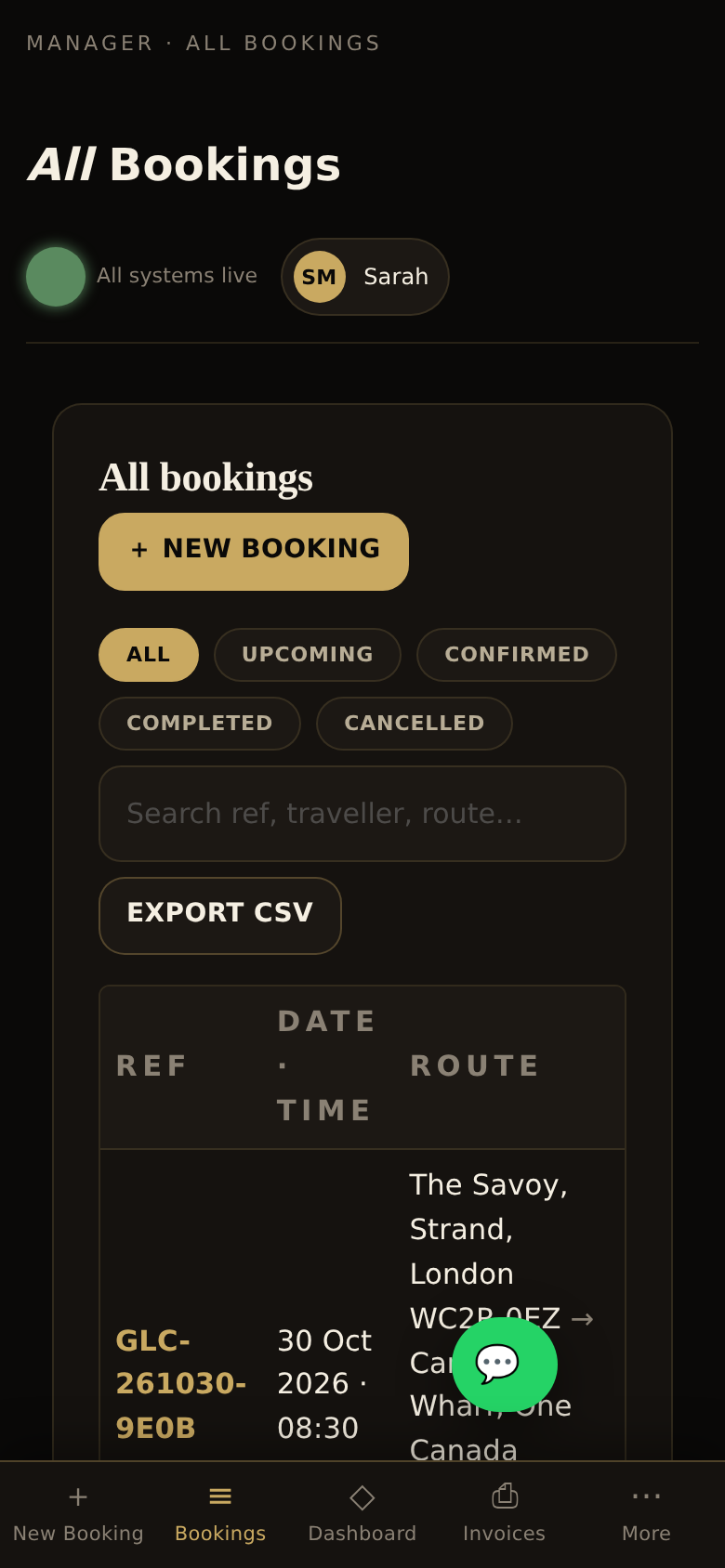
- In Bookings, open the journey and tap Amend - or just message WhatsApp.
- Changes and cancellations are free up to 6 hours before pickup. Inside 6 hours please call the office on 020 8888 9988: changes are accommodated where possible and re-priced for extra distance or waiting; a cancellation inside 6 hours is charged in full.
- A no-show (driver waited the included time, called and messaged without success) is charged as the full fare plus any waiting and parking.
5Tracking and the driver
From the booking (portal or WhatsApp) tap Track to see the car live. Updates arrive automatically on WhatsApp: driver assigned (name, car, registration), on the way, arrived (with the meeting point), and a reminder the evening before early pickups.
Airport pickups include 60 minutes waiting from landing; other pickups include 15 minutes. Waiting beyond that is charged in 15-minute blocks: Saloon £50/h, Executive and MPV £60/h, S Class and 8-seater £72/h. You'll see any extra as a separate line on the booking and the invoice, and you're told the moment it is added.
6Team, limits and cost centres (managers)
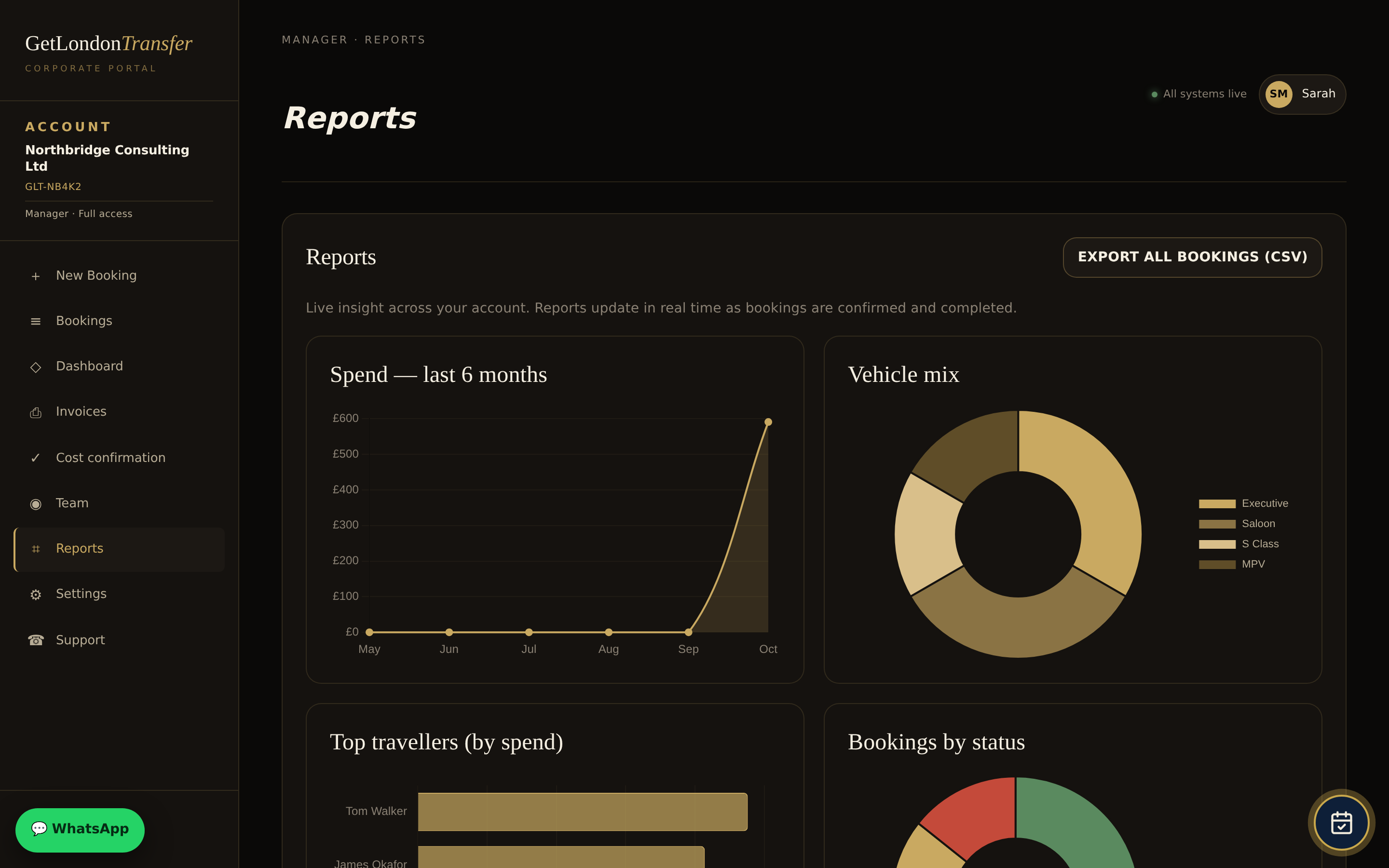
- Open Team → Add member. Give their name, email and mobile (for WhatsApp updates) and choose: Traveller only (no login) or Portal access as an employee or manager.
- Set a monthly spending limit for employees if you want one - bookings over the limit are blocked with a clear message.
- Add your cost centres / PO numbers in Settings so every booking is tagged and shows on the invoice schedule.
- Remove or deactivate anyone who leaves - you are responsible for bookings made with your logins and registered numbers until you tell us.
7Cost confirmation
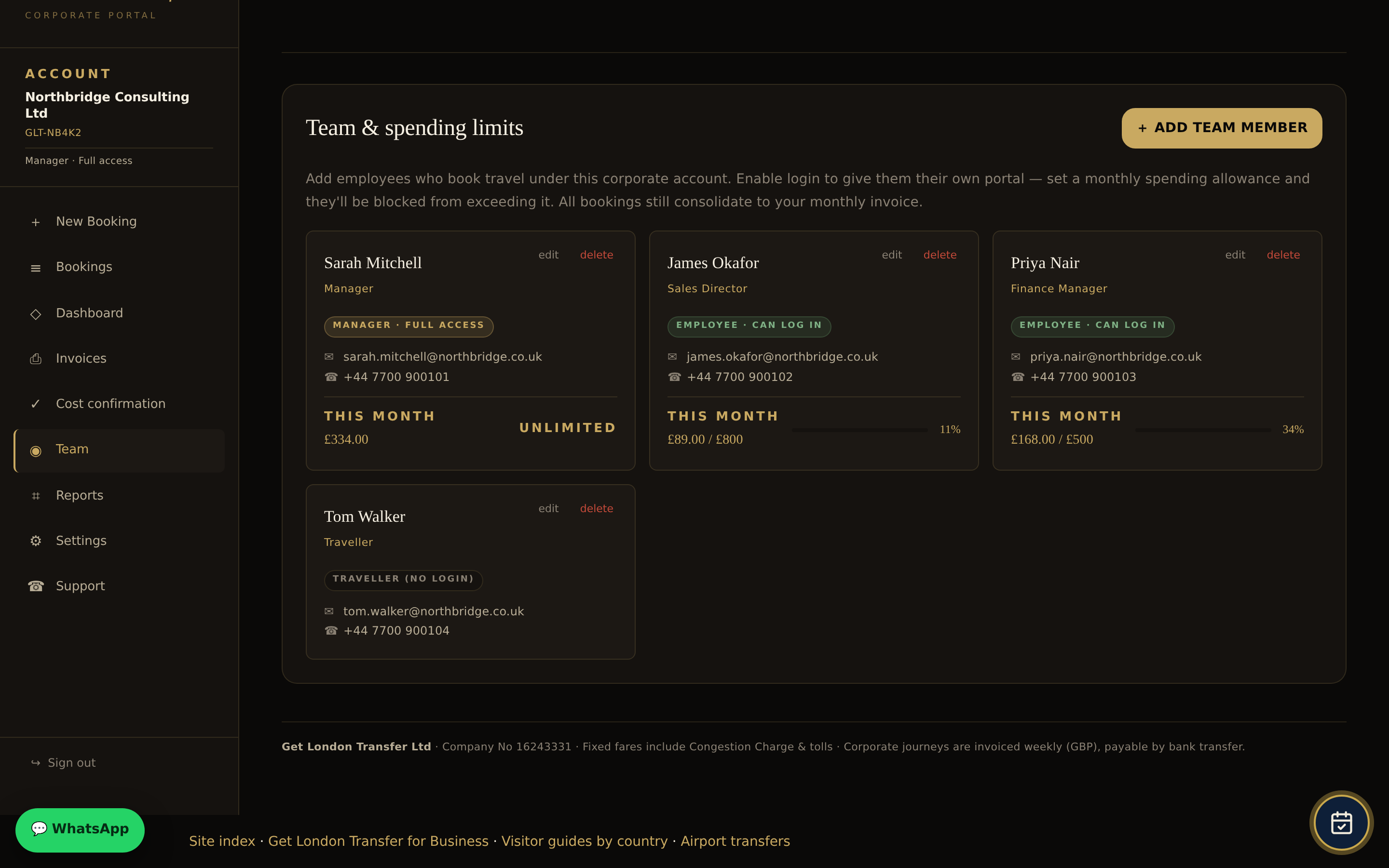
When a journey is completed it appears under Cost confirmation with the fare and any extras. Approve it, or query it with one click (we answer within 2 working days with the booking record, tracking data and driver notes). Journeys not actioned within 72 hours are treated as approved so invoicing is never delayed. You can switch on auto-approve with an optional per-journey budget in Settings.
8Invoices and payment
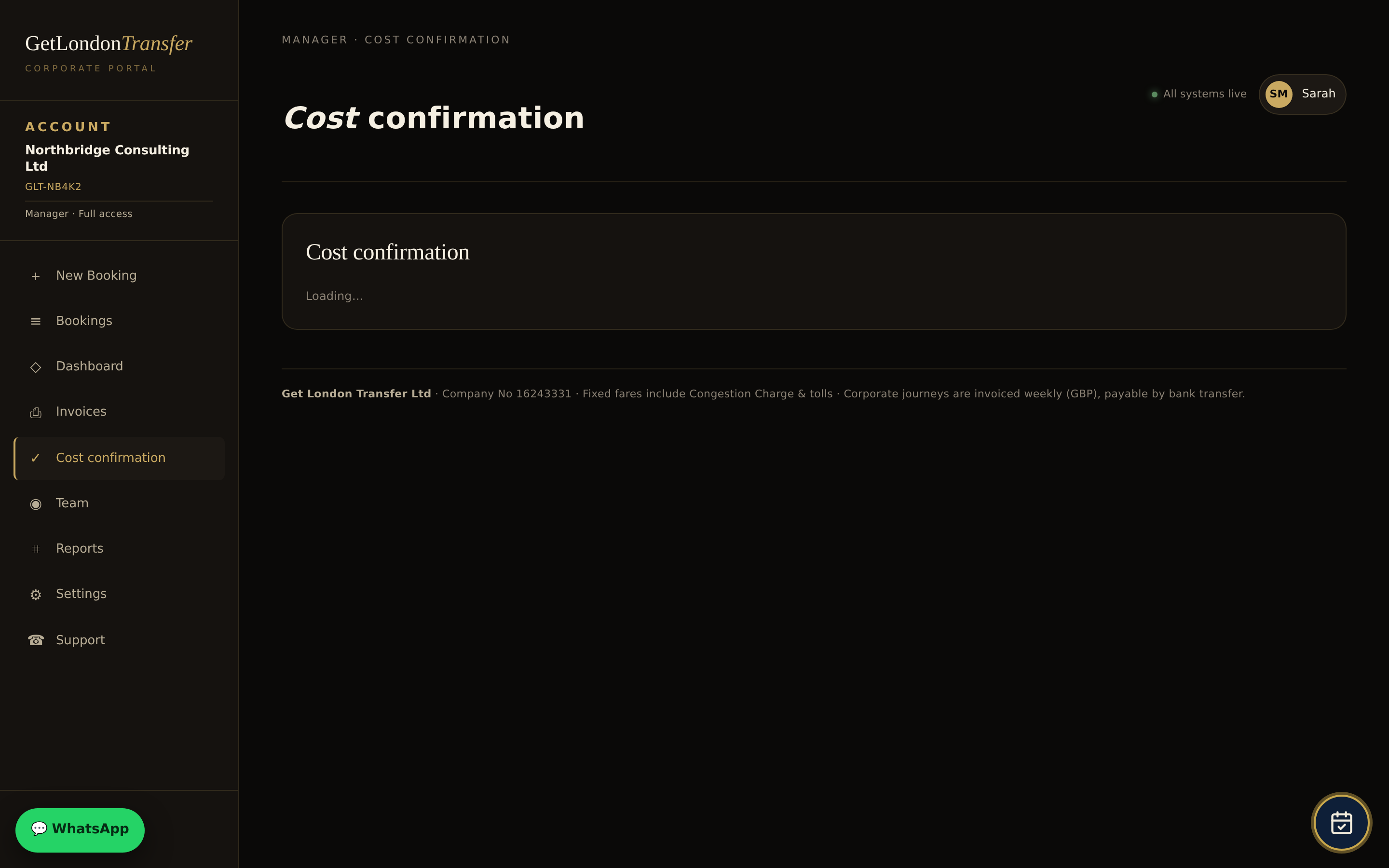
- Every Monday we issue one VAT invoice for all journeys completed the previous week (Monday to Sunday), with a journey-by-journey schedule: traveller, route, cost centre, extras.
- It is emailed to your accounts address and available under Invoices (download PDF, see the schedule, query a line).
- Payment is by bank transfer by the Friday of the same week. The due date and our bank details are printed on the invoice - please quote the invoice number.
- Your weekly credit limit is shown in the portal and rises automatically with payment history. An unpaid invoice past its Friday due date can pause new bookings until it is settled.
9Reports and settings
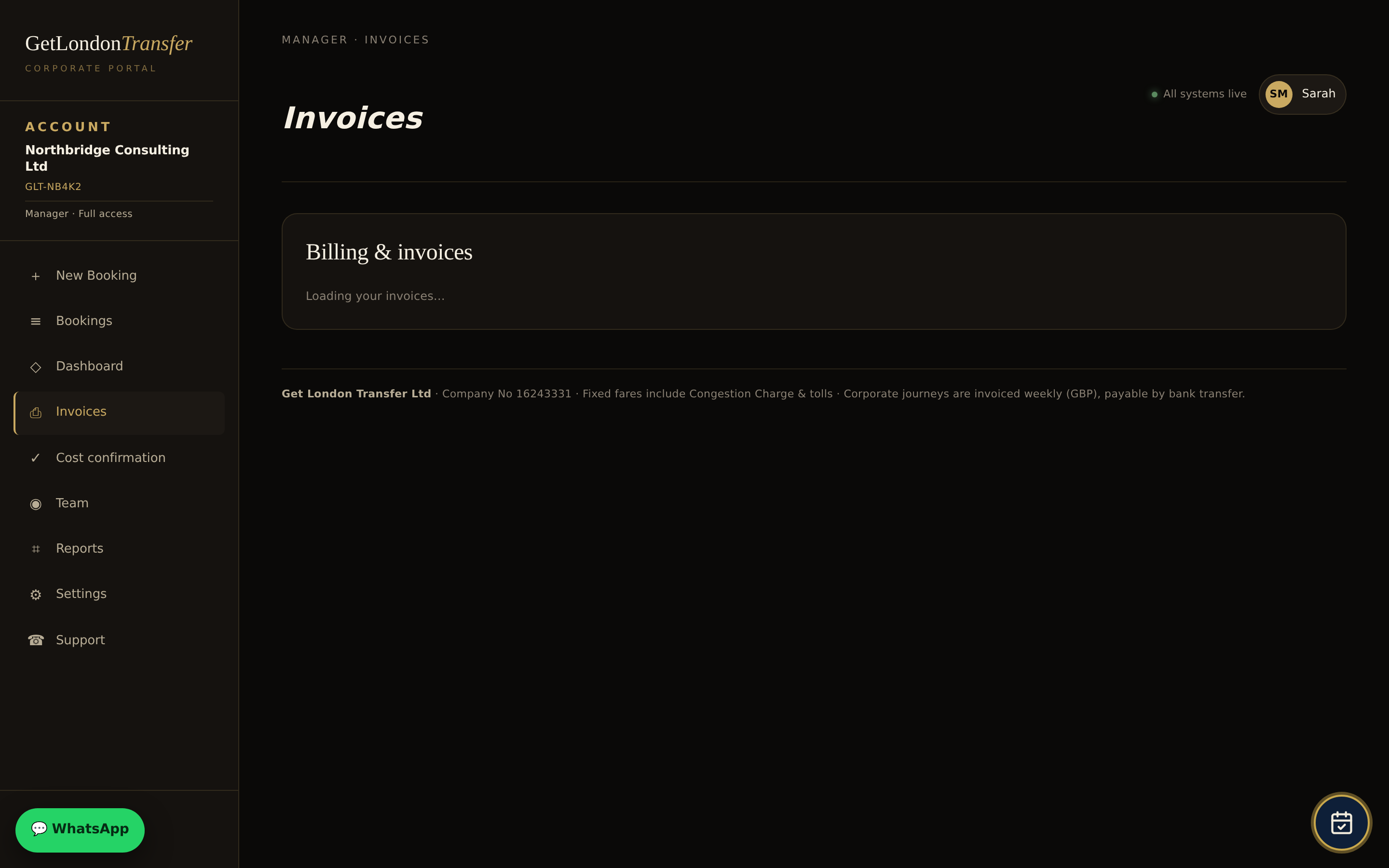
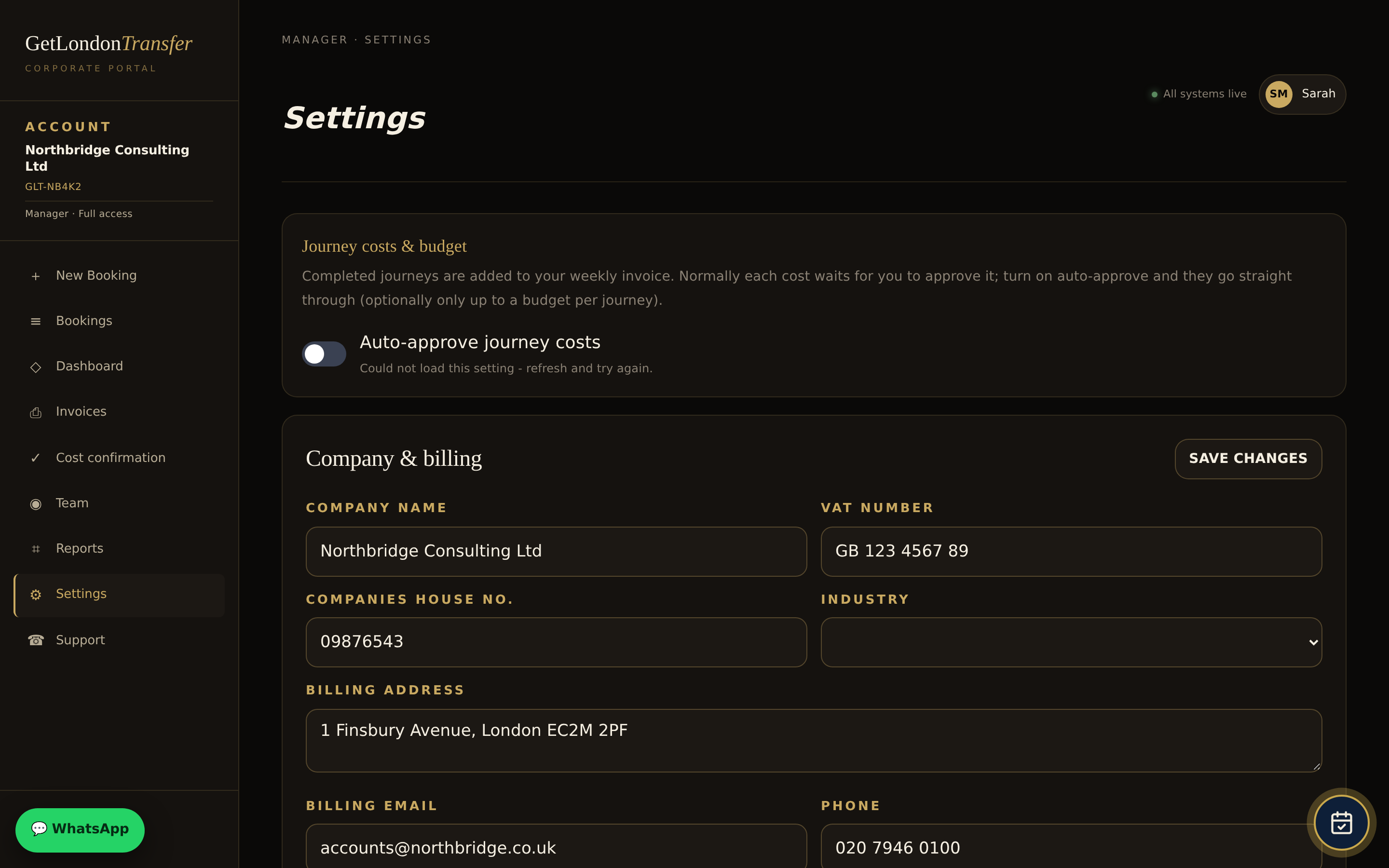
Reports show spend by month, by traveller and by cost centre, with CSV export for finance. Settings hold your company and billing details, PO/cost centres, default vehicle class, approval rules, notification preferences and security (two-step verification, active sessions).
10On your iPhone
The portal is built for phones. In Safari open getlondontransfer.co.uk/corporate, tap Share → Add to Home Screen, and it opens like an app. Or skip the portal entirely and message WhatsApp.
11Help, 24/7
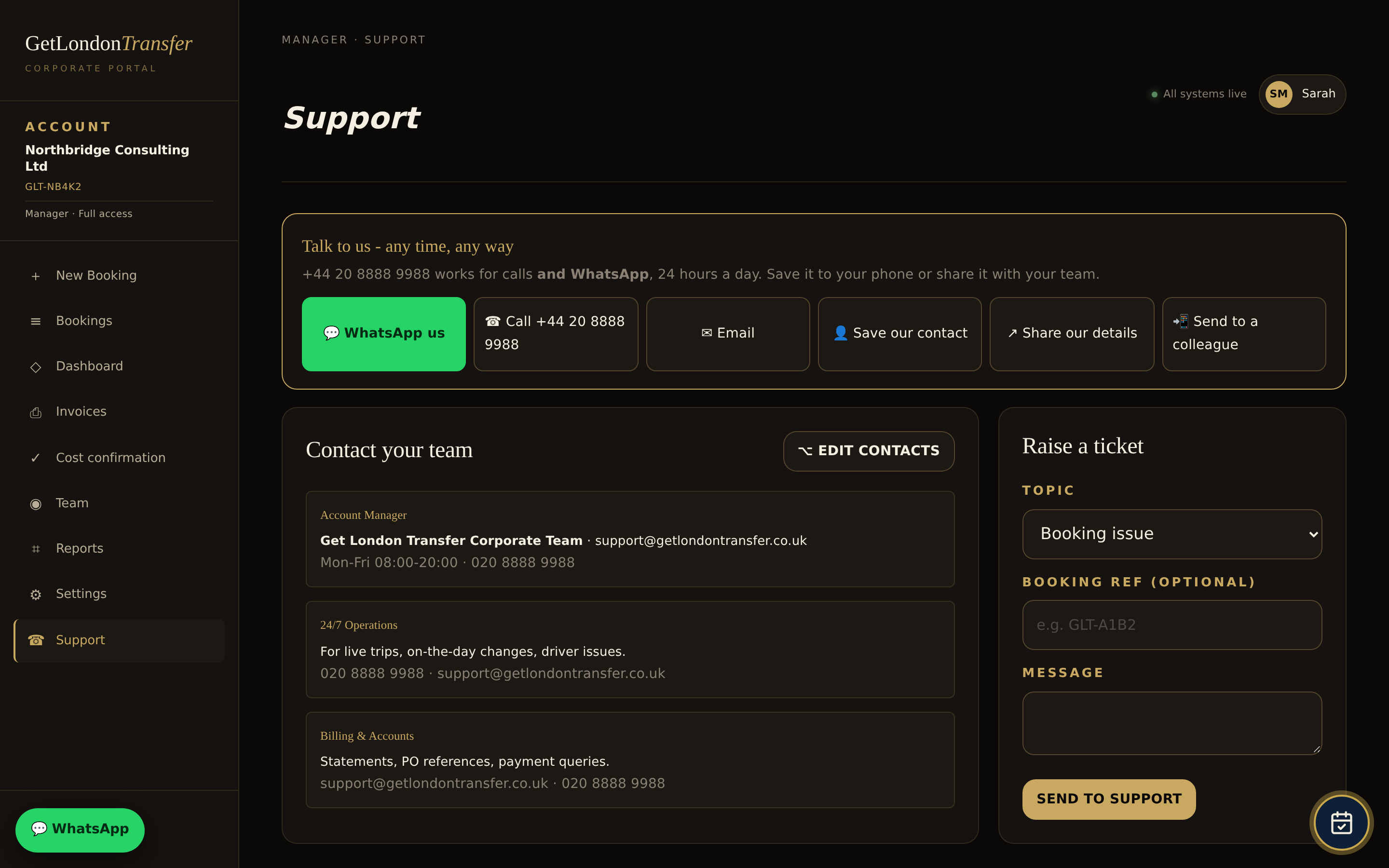
WhatsApp +44 7427 249103 (assistant replies in seconds; a person takes over when needed) · Office 020 8888 9988, 24 hours · Email support@getlondontransfer.co.uk · Tickets from the Support page (reply within one working hour).
Terms: Corporate Travel Agreement · Privacy.
Booking travel for your team? See our business travel and corporate transfer service with account billing and fixed fares.